
Automate your browser with AI
CopperOS reads, clicks and types in your own Chrome tabs, signed in as you. Give a task and it will do the rest.
CopperOS is a Chrome extension, so it installs from Chrome on a computer.
- Enhanced security with Jev
- Encrypted data storage
- Works in the Chrome you already use


01 What to hand over
Hand it the repetitive part
Ask in plain words, and it can repeat a job until you stop it. Save a task as a mold and run it again with one click. The library has 24 ready to run in CopperOS or copy.
Jobs · Ask before submits
Apply to jobs
Searches a job site with your titles, reads every listing in full, checks it against your level and work rights, and applies only to the ones that fit, answering each form from your own words.
You give it
- Titles you want and roles to skip
- Where, and your level
- Work rights, salary, notice, licence, on-site
- Cover letter and consent-box rules
- How many a run
Outreach · Ask before submits
Cold outreach on LinkedIn, X and Reddit
Finds people who match exactly who you described, reads their profile and recent posts first, and writes each one a short note that mentions something real about them. Each message waits for your approval. On Reddit it only answers people who ask for help, never cold DMs.
You give it
- Who to reach, and who never to contact
- What you offer and what you may claim
- The ask at the end
- Sites and a cap per run
- Approval before sending
Sheets
Build a lead list in Google Sheets
Finds people or companies that meet your must-haves, reads each one's own page, and adds them to your sheet with the reason they fit. Never twice, never with a guessed detail: a blank cell beats a wrong one.
You give it
- The sheet and tab
- Must-haves and nice-to-haves
- Where to look
- Who to leave out
- How many a run
Social
Monitor social media
Reads X, Reddit and LinkedIn for your names and keywords, sorts what it finds into leads, questions, praise and complaints, and puts the few posts worth answering at the top, with a draft reply you can use or bin. It never posts, likes or messages.
You give it
- Names and keywords to watch
- Competitors
- Which sites and subreddits
- What counts as a lead
- Where the report goes
Cleanup · Ask before submits
Unsubscribe from newsletters in Gmail
Goes through the Promotions tab, finds the newsletters from the last month, and unsubscribes you through each sender's own option. You see the list before it starts, and the report names every sender it unsubscribed from.
You give it
- Where to look, and how far back
- Senders to keep
- Kinds of mail to leave alone
Store · Ask before submits
Raise prices for a Shopify collection
Raises the price of every product in a Shopify collection by a percentage you choose. It builds a table of old and new prices first and waits for your OK, and the report keeps the old prices so you can reverse the change.
You give it
- The store and the collection
- The change, and how to round
- Whether compare-at prices change too
- Products to leave out
Shopping
Add a recipe's ingredients to a cart
Reads a recipe, works out what you need to buy, and adds the cheapest sensible option for each ingredient to your cart at a grocery store. It never checks out.
You give it
- The recipe, as a link or pasted text
- How many servings
- The store, and your pickup or delivery place
- What you already have at home
02 How it works
Ask, watch, approve, reuse
All of it happens in the side panel of the Chrome you already use.
-
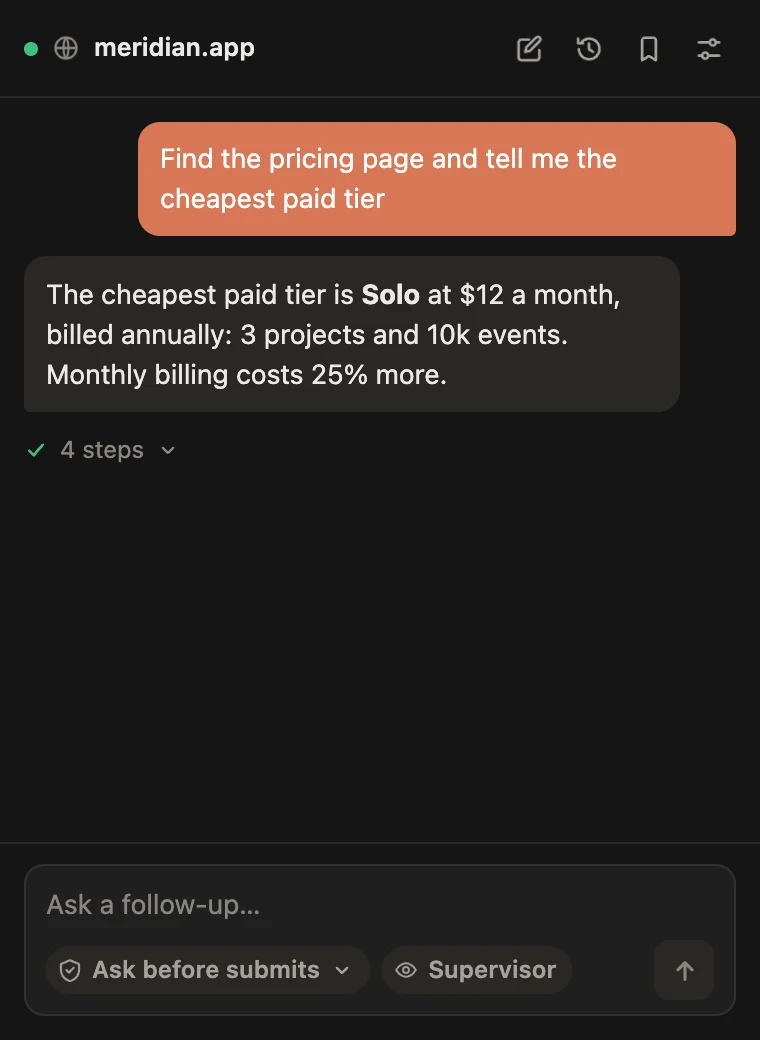
01 Ask
Type what you want done
Plain words, in the side panel. It reads the page and works out the steps.
-
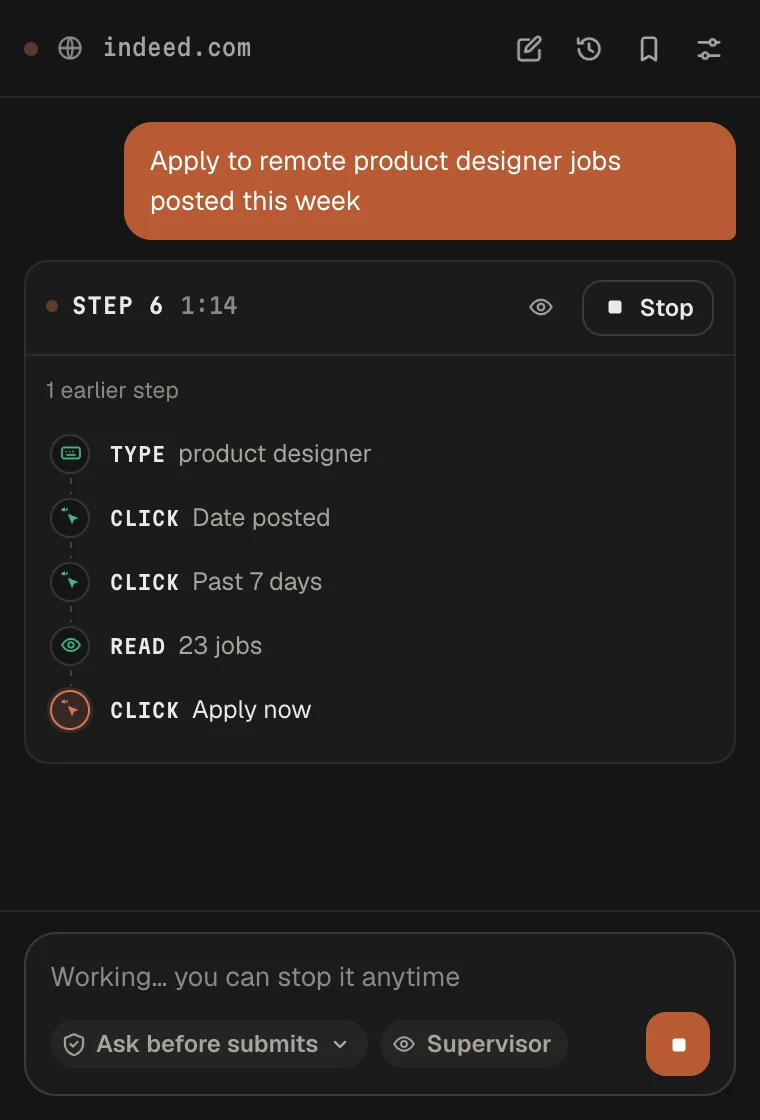
02 Watch
It works in your own tab
It clicks, types and reads like you would. The panel lists each step as it happens.
-
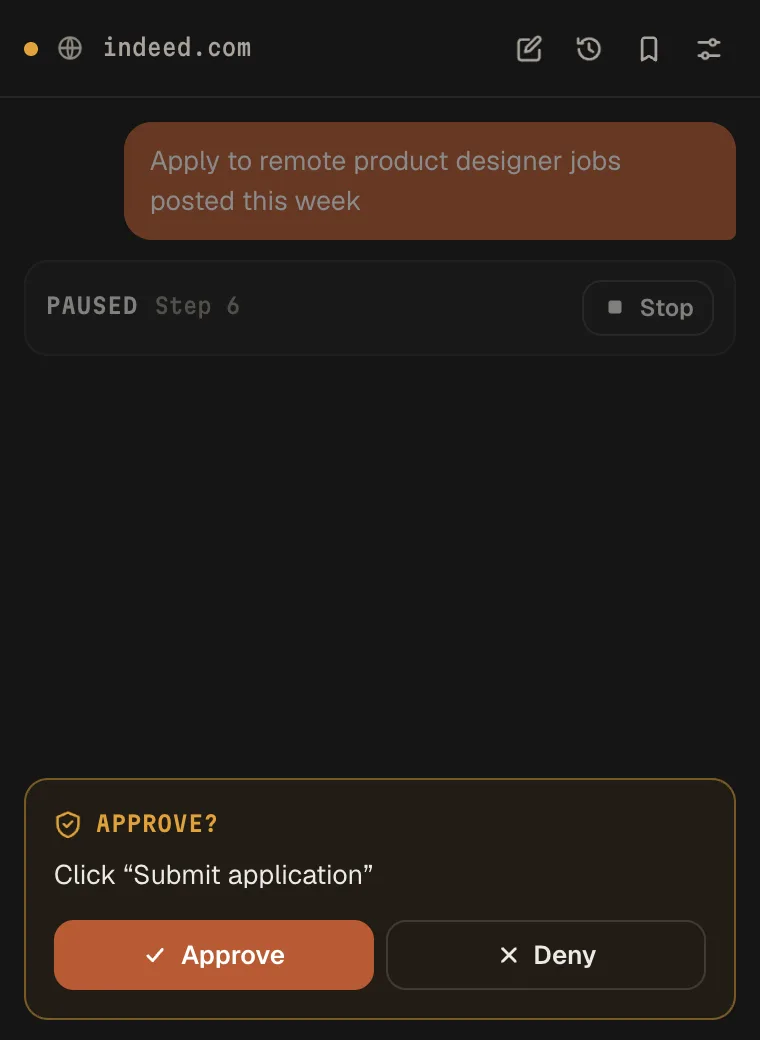
03 Approve
It waits for your yes
Before a submit it pauses and shows what it is about to do. You press Approve or Deny.
-
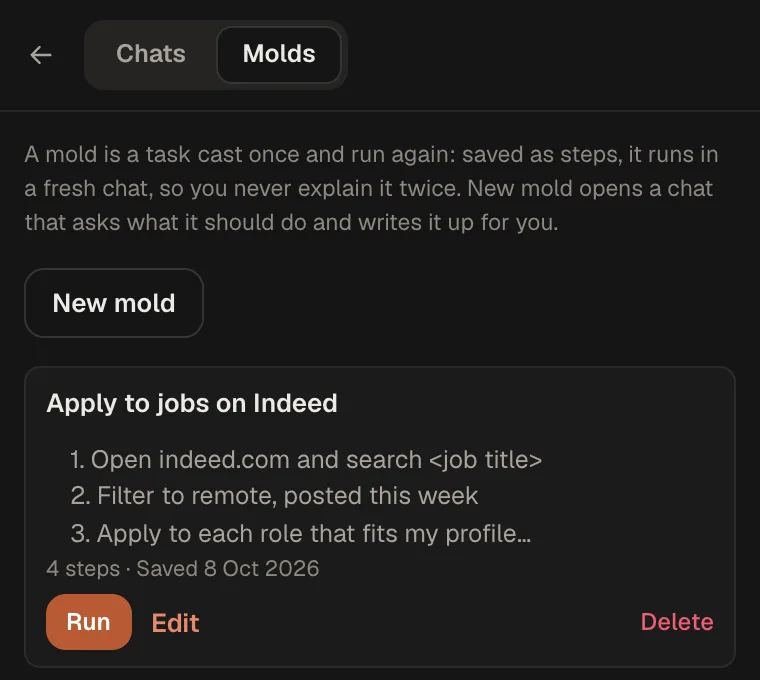
04 Reuse
Save it as a mold
The first time you ask for something that repeats, it offers to save it. A mold runs again with one click.
03 Always in the room
Nothing happens out of sight
It works in your own browser, so the first thing to know is how you stay in charge of it.
-
Visible
Every step is in the panel
Each click and keystroke shows as it happens, and the tab it's working in gets a frame.
-
Approvals
You choose what needs a yes
Ask before every action, only before submits, or never. You set it for each chat.
-
Stop
Stop means stop
One button ends the task mid-step. It only ever closes tabs it opened.
-
Private
Your chats are encrypted
In the cloud, every chat is encrypted before it is stored, with a key of its own for your account. Nothing is sold or used for ads.
-
Local
Run it on your own computer
The open-source broker keeps everything on your machine apart from what goes to your AI provider.
-
Open source
Read the code
MIT license. Anyone can check what it does. Source on GitHub
Try it on one task
Free to start, no card.
04 Pricing
Free to start
Type a task and sign up with Google when you send it. The trial needs no card. When you want more, pick a plan or bring your own key.
-
Start here
Ore
$0 to start
A small weekly trial of CopperOS's own model. Sign up with Google; no card.
- A task can run for up to 15 minutes
- The allowance starts again every Monday
-
Regular use
Ingot
$10 / month
Regular use of CopperOS's own model, every month.
- A task can run for up to 5 hours
- Cancel any time
-
Heavy use
Facet
$25 / month
Heavy use of CopperOS's own model, every month.
- A task can run for up to 24 hours
- Cancel any time
-
Your own key
Foundry
$5 / month
Bring your own OpenRouter or OpenAI key and choose your own model.
- You pay your provider for the model
- Tasks keep going with the panel closed
Plans, credits and billing Or run it on your own computer for nothing

Made by Jasmeet Singh. Open source under the MIT license: read the story behind it or the code.
What is CopperOS?
CopperOS is an open-source AI agent for Google Chrome, made by Jassydev. Add it from the Chrome Web Store, type a task in its side panel, and it reads pages, clicks and types in your own tabs, signed in as you. Every step shows in the panel while it works.
What can I use it for?
The repetitive part of work on websites: applying to jobs, filling in forms with your saved details, copying a list from a page into Google Sheets, finding a contact email, keeping an eye on social media, or summarizing a page. A task can repeat until you stop it, and you can save one as a mold to run again with one click. The mold library has 24 ready to run or copy.
Is CopperOS free?
It's free to start: sign up with Google and you get a small weekly trial of CopperOS's own model, with no card. For more, Ingot is $10 a month and Facet $25 a month, and Foundry is $5 a month to use your own OpenRouter or OpenAI key. Running it on your own computer with the open-source broker costs nothing. See pricing.
Is it safe to let an AI agent use my logged-in browser?
CopperOS is built so you stay in charge. Every click and keystroke shows in the side panel, and the tab it's working in gets a frame. It asks before it submits anything (or before every action, if you choose), Stop ends a task mid-step, and it only ever closes tabs it opened. In the cloud, every chat is encrypted before it's stored. The code is open source, so anyone can check what it does.
Which AI models does it work with?
In the cloud, CopperOS runs on its own model, so there's no key to find. With your own key, any model that supports tool calling works, through OpenRouter or OpenAI. On your own computer you can also use a local model through Ollama.
How is CopperOS different from Comet or Cowork?
Comet is a separate browser to install, and Cowork works in its own browser inside the Claude app. CopperOS adds an agent to the Chrome you already use, where you're already signed in. It works with the model you choose, and it's open source under the MIT license.
Can I run CopperOS on my own computer?
Yes. Run the open-source broker from GitHub with Node.js, and the panel offers to switch to it as soon as it finds it running, with no sign-up. Everything stays on your machine apart from what goes to your AI provider. See the setup guide.
06 Plainly
What it can't do yet
Known limits
- It works in one tab at a time. It can switch tabs, but it doesn't work in several at once.
- Very long pages are read in pieces. It scrolls for the rest.
- Chrome shows "CopperOS started debugging this browser" while it works. That is how it clicks and types reliably, and only you see it.
- It is only as good as the model behind it. Small models lose track of instructions sooner.
- In the cloud, how long one task runs depends on the plan: 15 minutes on the trial, up to 24 hours on a plan. Say continue and it picks up where it left off.
Not for you if
You want a separate browser built around AI. Comet is that. CopperOS adds an agent to the Chrome you already have, signed in as you.
Questions? Support07 For power users
Use it with Claude, or on your own computer
Use it with Claude: MCP
Connect CopperOS to Claude and Claude can drive your own Chrome. Hand it the long browser jobs you would otherwise run in Cowork.
- A task can run for hours: up to 5 on Ingot and 24 on Facet. Claude follows it from start to finish.
- It works from the page's own elements, not screenshots, so it clicks the right control.
- The reading and clicking run on CopperOS's model, or your own key, and don't use your Claude usage.
- Approvals still wait for you in the panel. Claude can't answer them.
- 01In CopperOS, open Settings, then MCP, and copy the address
- 02In Claude, open Settings, then Connectors, then Add custom connector, and paste it
- 03Sign in with your CopperOS account and press Allow
Chrome has to be open with CopperOS signed in.
On this computer
Run the open-source broker yourself. Everything stays on your machine apart from what goes to your AI provider, and local models work through Ollama. When the broker is running, the panel offers to switch to it, with no sign-up.
$ git clone https://github.com/Jesse0502/CopperOS.git
$ cd CopperOS/broker
$ npm install
$ npm startTry it on the page you're on
Find the pricing page and tell me the cheapest paid tier
Add to Chrome- 1Add CopperOS to Chrome
- 2Open the side panel and type a task
- 3Sign up with Google when you send it
Free to start, no card. See plans and credits, or run it on your own computer with a local model. Open source under the MIT license. Setup guide